Offline bank statement converter for India
Bank statement PDF to Excel & Tally. Offline, on YOUR computer.
StatementPro converts SBI, HDFC, ICICI, Axis and other Indian bank statement PDFs to Excel, CSV, Word and Tally XML on your own Windows PC. Every row is checked against the running balance. Nothing is uploaded.
- Works with the internet off
- No account, no upload
- Windows 10 / 11 (64-bit)
- English + हिन्दी
- Offline conversionEvery statement is processed on your PC
- No uploadStatements never leave your computer
- No account neededNo sign-up, no cloud, no sync
- Windows 10/1164-bit desktop app
See the real app, from PDF to Excel and Tally
Screens from StatementPro with a synthetic sample statement. What you see is what you install.
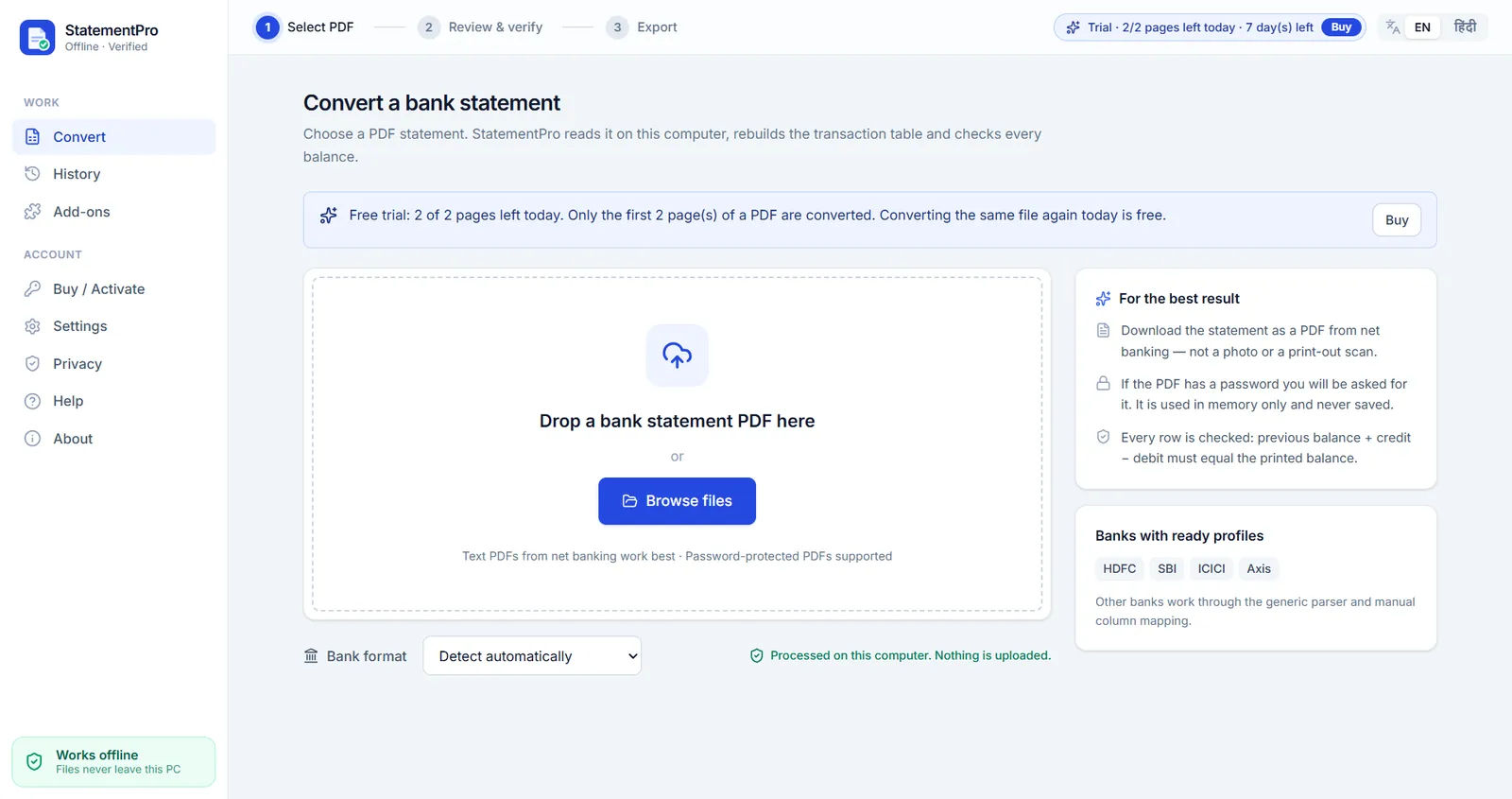
Drop a bank statement PDF
Choose the PDF you downloaded from net banking. Password-protected PDFs are opened in memory only. The bank is detected automatically.
Every row checked against the balance
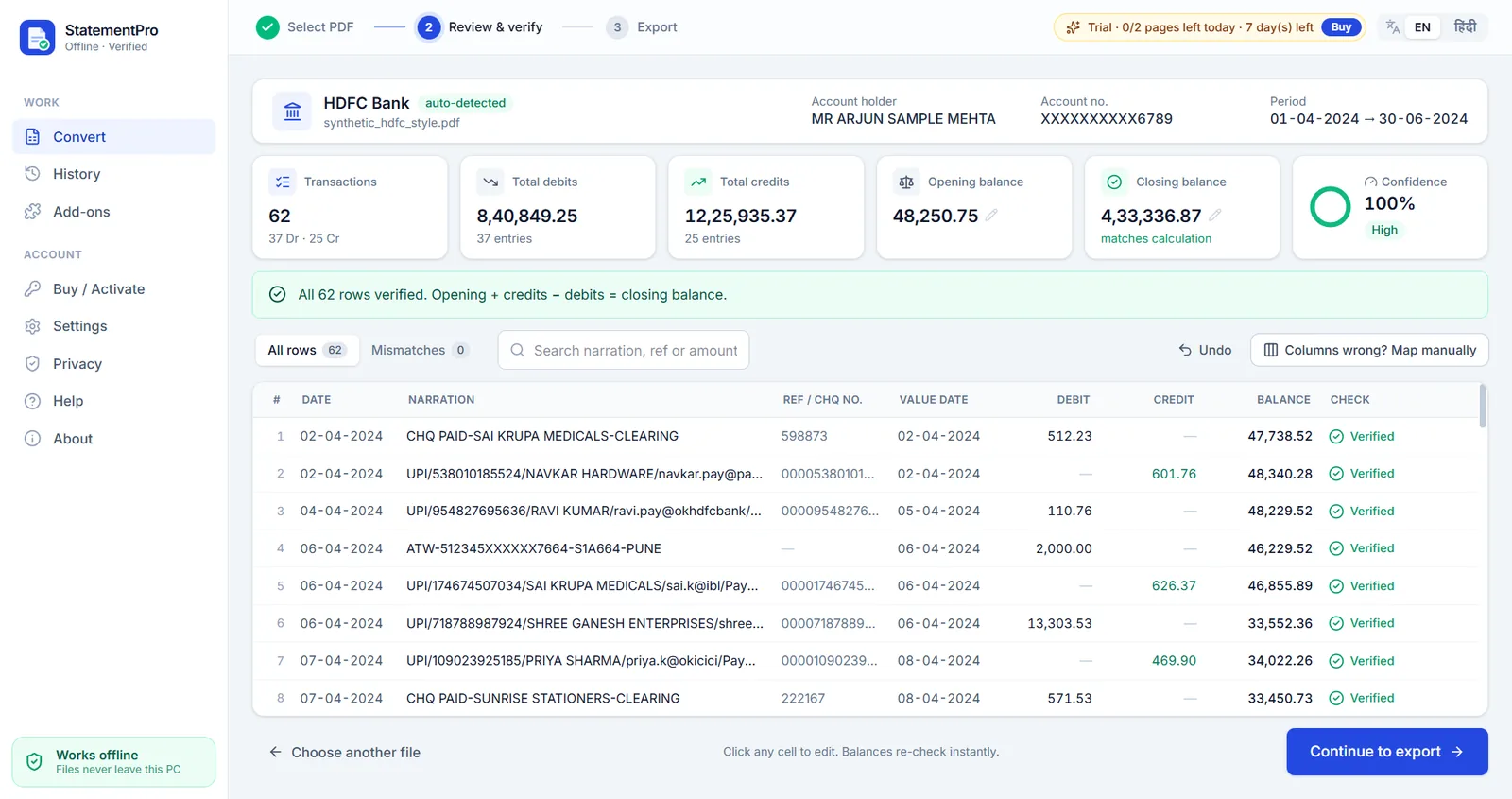
Rows are rebuilt as Date, Narration, Ref/Cheque No, Value Date, Debit, Credit and Balance. Then each row is checked: previous balance + credit − debit must equal the printed balance.
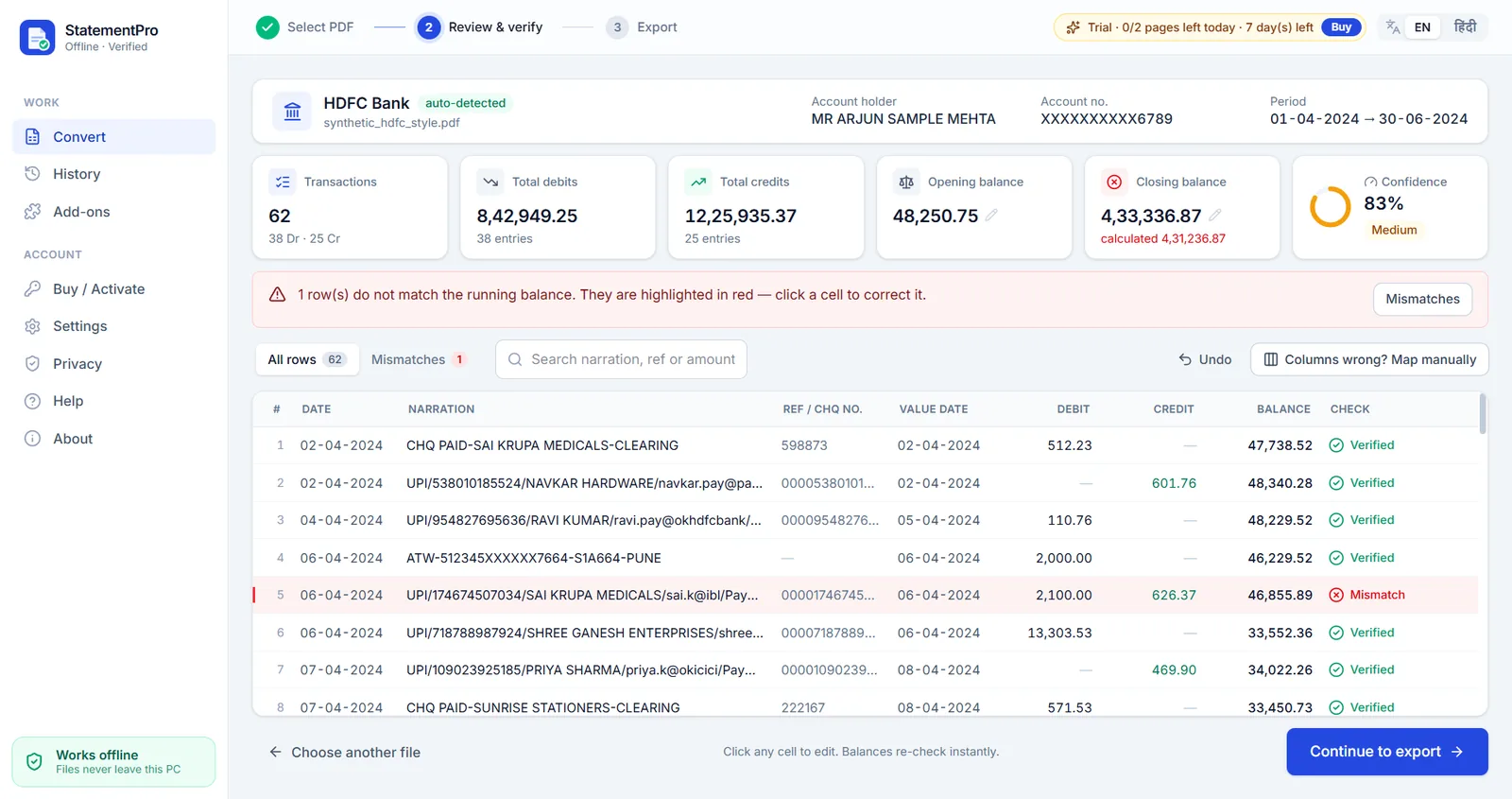
Mistakes turn red, so nothing slips through
If a number does not add up, the row is marked Mismatch. Click the cell, correct it, and the whole chain re-checks instantly. Undo is one click.
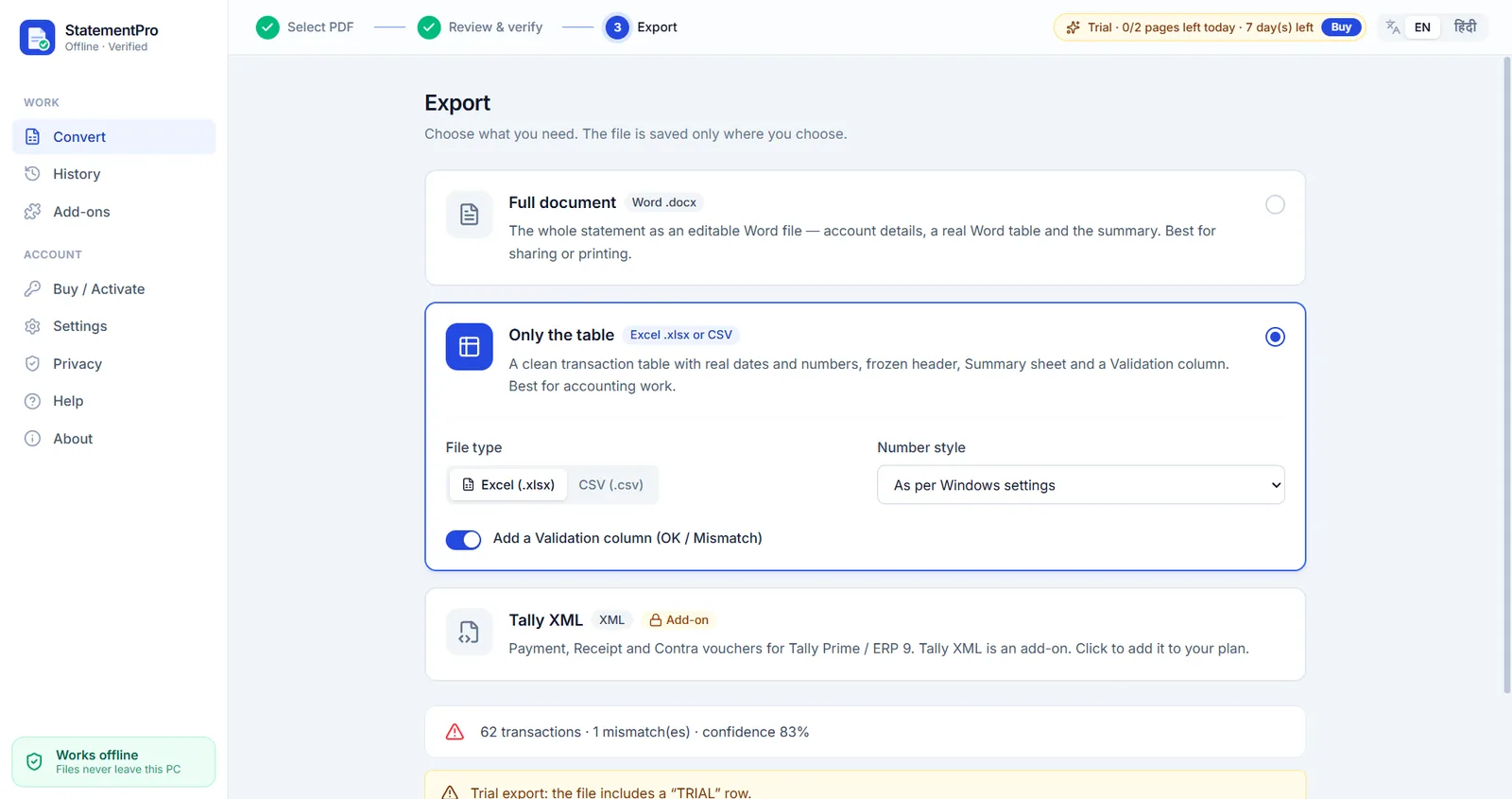
Clean Excel, CSV or Word
Real date and number cells, frozen header, auto column widths, a Summary sheet and an optional Validation column. Indian lakh number format if you want it.
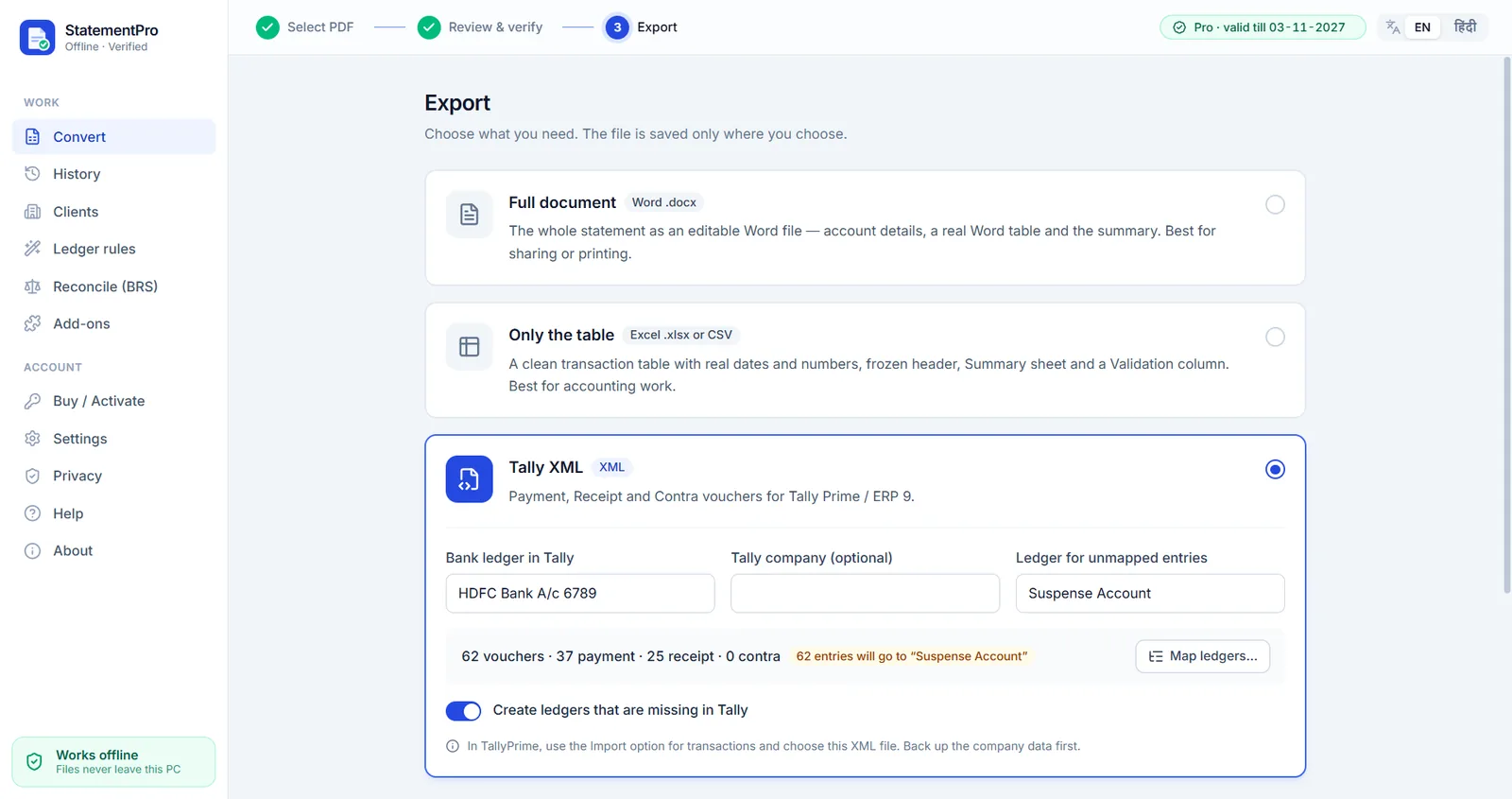
Payment, Receipt and Contra vouchers for Tally
Pick the bank ledger, map narrations to ledgers (or let Ledger rules do it) and import the XML in Tally Prime or ERP 9. Missing ledgers can be created automatically.
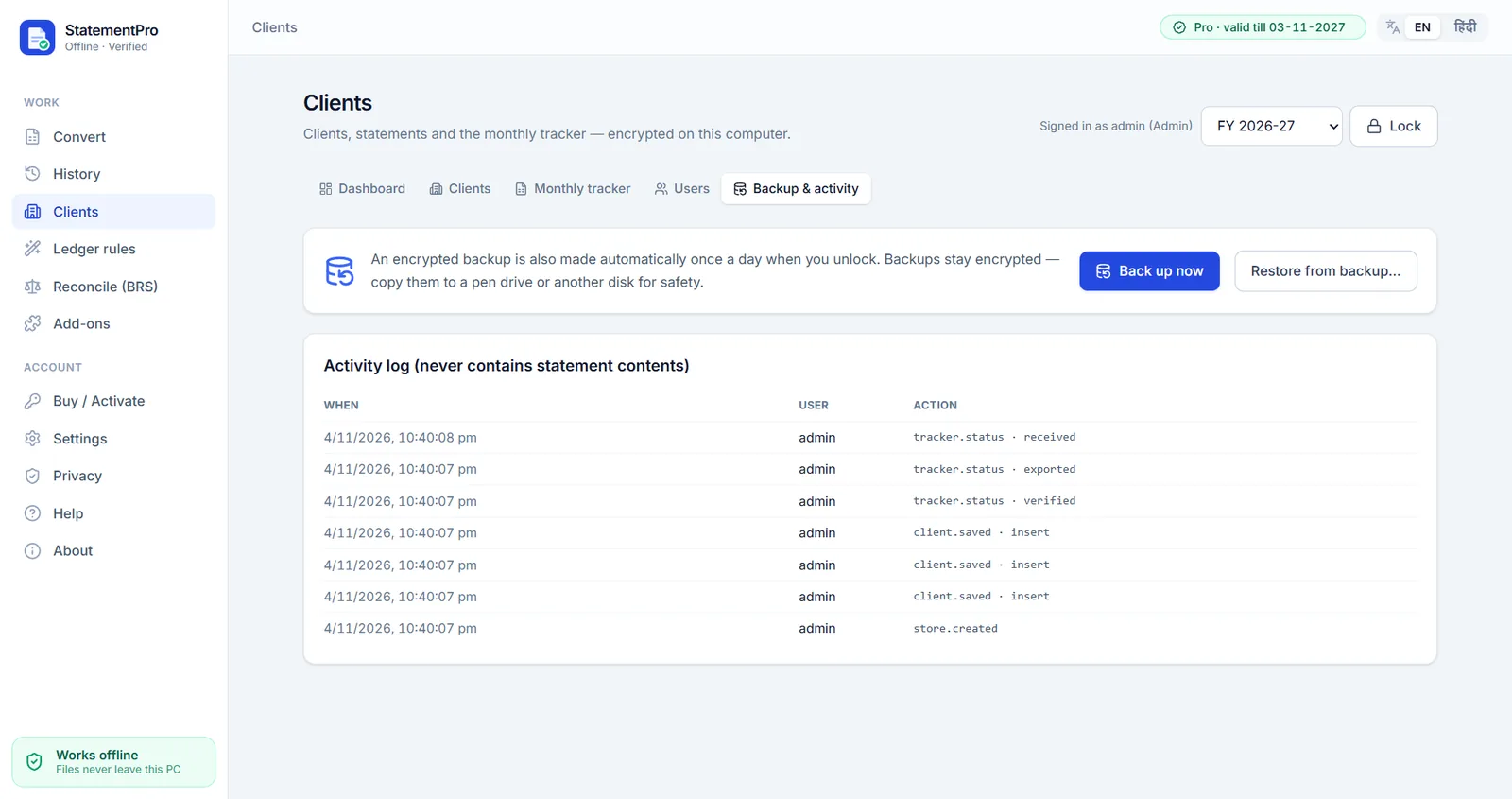
Client manager for CA firms
An encrypted local client database with auto-filing by client and financial year, a monthly tracker and encrypted backups, all on your PC.
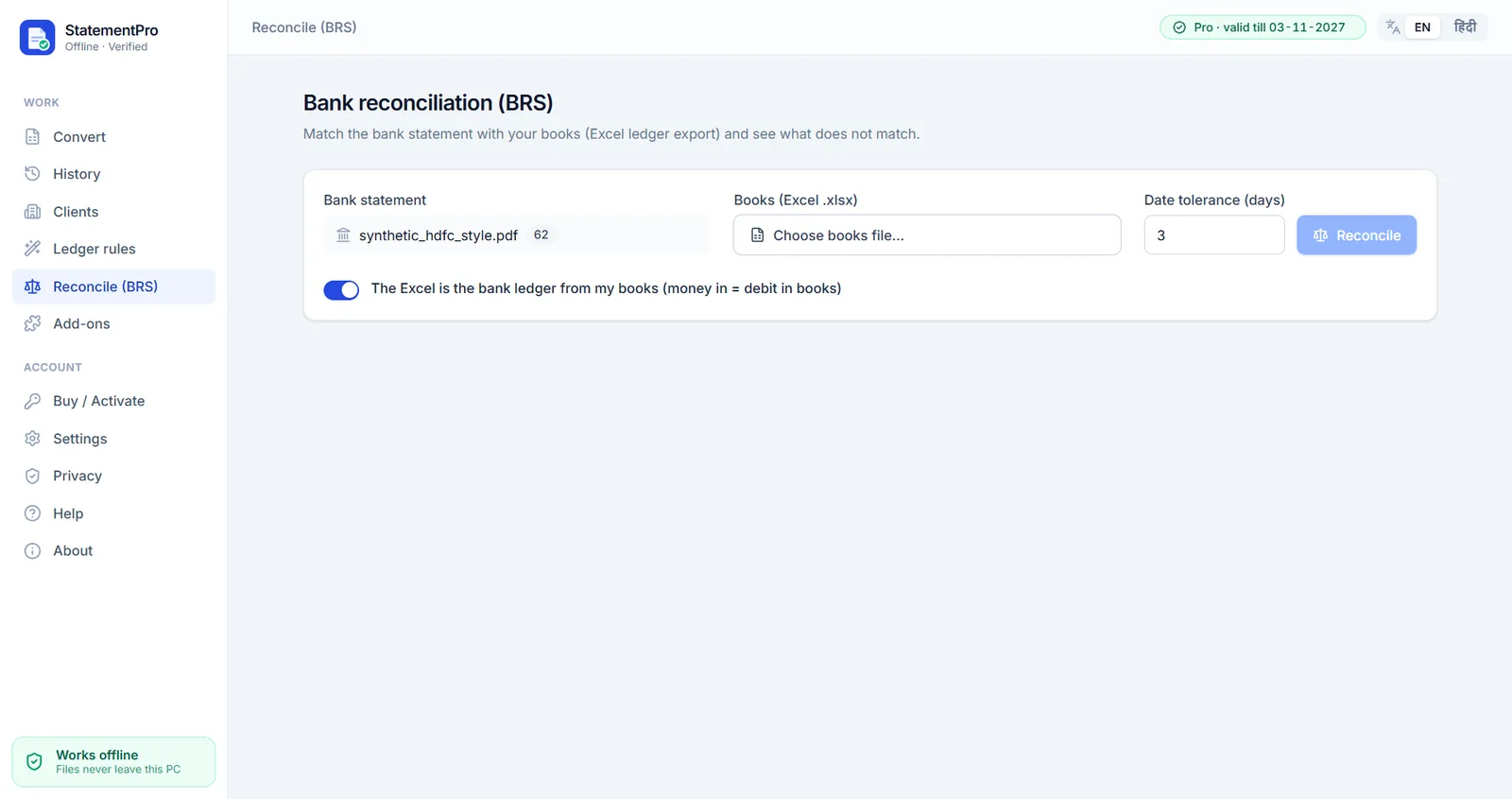
Bank reconciliation (BRS)
Match the bank statement with your books Excel and list what does not match, with a date tolerance you choose.
Convert statements from SBI, HDFC, ICICI, Axis and more
Tuned profiles for four of India's biggest banks. Kotak, PNB, Bank of Baroda, Canara, Union Bank, IDFC FIRST, Yes Bank and IndusInd are detected too, and any other bank's text PDF works after a one-time column mapping.
Why uploading client statements to online converters is risky
Online PDF converters are convenient. But a bank statement is one of the most sensitive documents a client hands you. When you upload it, it leaves your control — and what generally happens next is something you usually cannot see or check.
- Client statement
- Sent over the internet
- Someone else's server
- Cloud storage?
- OCR / AI processors?
- Backups & logs?
Where is it stored? For how long? Who can open it? From the outside, you generally can't tell.
- Client statement
- Converted on your PC
- Excel · Word · Tally
- No upload
- No account
- Outbound connections blocked
The PDF is read, converted and saved on the same computer. There is no copy on anyone else's server.
-
Your client's data lands on someone else's server
A statement carries far more than numbers: your client's name, account number, UPI IDs, salary credits, and the names of everyone they pay or receive money from. Uploading it puts all of that on a computer you do not control.
-
You can't see what happens next
Once a file is uploaded, you generally cannot verify where it is stored, how long it is retained, who has access to it, or whether backups and server logs keep copies after it is "deleted".
-
One upload, several companies
Many online services rely on third-party cloud hosting, OCR or AI processors. A single file may pass through more than one company's systems, each with its own policies and staff.
-
Breaches happen — the liability is yours
Any internet-connected server can be breached. If even one client's statement leaks, the professional responsibility to that client is yours, not the tool's.
-
The fine print may allow more than you think
Terms of service often permit storing or processing uploaded content — for example, "to improve our services". Most people click Upload without ever reading them.
-
"Free" is rarely free
Free online tools are often funded by advertising, upsells, or the value of the data that passes through them. Running servers costs money; someone pays for it somehow.
-
No internet, no work
An internet outage or server downtime means your work stops — no matter how close your deadline is.
-
Professional duties and the law
Chartered accountants owe their clients confidentiality, and India's Digital Personal Data Protection Act, 2023 places duties on those who handle personal data. Sending client statements to servers you cannot audit can make those duties harder to meet.
Verify current obligations with your legal advisor.
How StatementPro is different
Your clients' data never leaves your computer. That is not a slogan bolted on afterwards — it is how the app is built and tested.
- No uploads. No account. No cloud.
Statements are read and converted on your PC. No telemetry, no analytics, no crash reporting, no sync.
- Built-in network guard
The conversion engine blocks outbound connections, the app window blocks all web requests, and a strict content-security policy forbids connections. The only exception is the price-list download described below.
- No open ports
StatementPro opens no network ports on your computer, so there is nothing listening for connections.
- Tested on every build
Automated tests fail the build if any unexpected network connection is attempted.
- Check it yourself with the firewall
Block
StatementPro.exeandengine.exewith a Windows Firewall outbound rule — conversion still works (the Buy screen then shows the built-in prices). Or watch Resource Monitor → Network while you convert. - See it inside the app
The Privacy screen lists what the app does and never does, with a live "Network activity: none" indicator.
- PDF passwords are used in memory only — never saved.
- Logs record events only (e.g. "conversion finished, 62 rows") — never statement content, names or file paths.
- History keeps file names and totals only, with optional auto-clear (on exit, 7 or 30 days).
- Temporary files are overwritten and deleted after conversion. On SSDs, overwriting cannot guarantee physical erasure — we recommend BitLocker.
Honest small print: conversion, OCR, exports, activation and the client manager work fully offline. The app connects only when you click a WhatsApp button (it opens WhatsApp with a pre-filled message — nothing is sent automatically), or when you open the Buy / Activate or Add-ons screen, where it downloads our current price list — a small file we sign digitally, hosted on GitHub. That is a plain download: no statement data, file names, Machine ID, licence or personal details are sent. If the PC is offline or the download is blocked, the built-in prices are shown and everything else works normally.
Online converter vs. StatementPro
A general comparison with how online converters typically work. Individual services differ — always read their terms.
| Aspect | Online converter (typical) | StatementPro |
|---|---|---|
| Data location | Uploaded to the provider's servers — and possibly to their cloud, OCR or AI sub-processors. | Stays on your PC. Nothing is uploaded. |
| Internet needed | Yes — to upload, process and download every file. | No. Conversion works fully offline. The app connects only if you click a WhatsApp button or open the Buy / Add-ons screen (to fetch the current price list) — never with statement data. |
| Retention | Decided by the provider; generally not something you can verify. | You control it. History stores file names and totals only, with optional auto-clear. |
| Breach exposure | Files may sit on internet-connected servers, which can be targeted by attackers. | No server copy exists — we never receive your statements. Protection depends on your own PC (BitLocker recommended). |
| Speed on bulk files | Every file uploads and downloads; depends on your connection, server queues and any size limits. | Runs on your PC with no upload step. Unlimited pages on paid plans. |
| Cost model | Often "free" with ads or upsells, or a recurring subscription. | Annual licence per PC, from ₹3,000/year. Free 7-day trial. |
Bank statement to Excel or Tally in three steps
No upload, no waiting on a server. Open the PDF, check the result, export.
-
Select the PDF
Choose a statement downloaded from net banking. Password-protected? Enter the password — it is used in memory only and never saved. Scanned copy? Use OCR on the Pro plan.
-
Review & verify
StatementPro rebuilds every row and runs a balance check on each one. Mismatched rows turn red; click any cell to fix it and balances re-check instantly.
previous balance + credit − debit = balance -
Export Excel, Word or Tally
Save the full document as Word, or only the table as Excel or CSV. With the Tally add-on, create Tally XML vouchers for Tally Prime / ERP 9.
Built for Indian bank statements and the people who check them
For CA firms, accountants, tax practitioners, traders and small businesses who need bank statement to Excel, Word or Tally conversions they can check.
-
Balance verification on every row
Each row is checked: previous balance + credit − debit = balance, to a tolerance of ₹0.01. The whole statement is checked too: opening + total credits − total debits = closing balance.
- Mismatched rows are shown in red
- A confidence score (0–100%) is shown
- Debits/credits in the wrong column are auto-fixed using the balance chain and clearly marked "Auto-fixed"
- Editable preview: click any cell to fix it, balances re-check instantly, undo
-
Password-protected PDFs
Open protected statements directly. The password is used in memory only and is never saved.
-
Scanned PDF OCR
ProConverts scanned statements on your PC with built-in OCR and table structure recognition.
OCR is included in the installer — nothing extra to download. Scanned PDFs work right after installation.
-
12 banks auto-detected
Ready, tuned profiles for HDFC, SBI, ICICI and Axis (marked ✓); the other detected banks use the generic parser. Any other bank with a text PDF: map the columns once (about 20 seconds) and save it as a reusable format.
-
Full document or only the table
Word (.docx): account details, the printed header text, a real Word table (not images) and a summary.
Excel (.xlsx) or CSV: real date and number cells, frozen header, auto column widths, Summary sheet, Validation column, optional Indian lakh number format.
-
Handles messy statements
Multi-line narrations, repeated page headers and footers, B/F and C/F lines, Dr/Cr markers, Indian number format (1,23,456.78), many date formats, and newest-first statements (auto-sorted).
Rows are rebuilt as Date, Narration, Ref/Cheque No, Value Date, Debit, Credit, Balance.
-
Tally XML
Add-onPayment, Receipt and Contra vouchers for Tally Prime / ERP 9, with ledger mapping and auto-creation of missing ledgers.
-
CA Client manager
Add-onEncrypted local client database (master password — a lost password cannot be recovered). Client profiles with PAN, GSTIN, FY, Tally company and bank accounts; auto-filing to Clients/<Client>/<FY>/<Month>/.
Monthly tracker (Pending / Received / Converted / Exported / Verified), dashboard, import clients from Excel, encrypted backup & restore, and a WhatsApp reminder helper that opens wa.me links — it never sends automatically.
-
Ledger rules
Add-onMap narrations to ledgers with keyword or pattern rules and priorities. Import and export rules as JSON, and get suggestions learned from your edits.
-
English + हिन्दी
English interface with a Hindi toggle.
Also available as add-ons: Merge & monthly summary, UPI / NEFT parser, Multi-user and Reconciliation (BRS) — see pricing.
Simple annual licences. Try free first.
Prices in INR, per PC, valid for one year. Test the trial on your own statements before you buy.
-
Free trial
Try it on your own statements.
Freefor 7 days
- Up to 2 pages converted per day (longer PDFs: first 2 pages)
- Exports include a "TRIAL" row
- Header shows pages left today and days left
- No account needed
-
Basic
Text PDFs from net banking.
₹3,000/ year
- Text PDFs to Excel, CSV and Word
- Balance verification on every row
- Password-protected PDFs
- Unlimited pages
- 1 PC · 1 year
-
Recommended
Pro (OCR)
Text and scanned statements.
₹5,000/ year
- Everything in Basic
- Scanned PDF OCR
- Table structure recognition
- 1 PC · 1 year
-
CA Pack
For practices working in Tally.
₹8,500/ year
- Everything in Pro
- Tally XML
- CA Client manager
- Ledger rules
- 1 PC · 1 year
Add-ons
Per year. Add only what your work needs.
- Tally XMLVouchers for Tally Prime / ERP 9 with ledger mapping; auto-creates missing ledgers.₹2,000 /yr
- Ledger rulesKeyword / pattern → ledger with priority; JSON import/export; suggestions from your edits.₹1,000 /yr
- Merge & monthly summaryCombine several statements; month-wise totals.₹1,000 /yr
- UPI / NEFT parserSplits narration into UTR, UPI ID, payee and mode (NEFT/RTGS/IMPS/UPI/ATM).₹1,000 /yr
- CA Client managerEncrypted local client database, auto-filing, monthly tracker, dashboard, encrypted backup.₹2,500 /yr
- Multi-userAdmin / Staff roles with an activity log that contains no statement content.₹2,000 /yr
- Reconciliation (BRS)Match the bank statement with a books Excel; list unmatched entries.₹2,500 /yr
- GST extra if applicable.
- Payment by UPI — no payment gateway and no card details. Licence keys are tied to one PC.
- Refunds: see the refund question in the FAQ.
Buy in four simple steps — no payment gateway
Activation is manual and personal: you pay by UPI, we send your licence key on WhatsApp.
-
Install StatementPro
Download the installer from this page, run it and open StatementPro.
-
Copy your Machine ID
Open Buy / Activate and copy the Machine ID shown for your PC.
ABCD-EFGH-JKLM -
Pay by UPI & send proof
Scan the UPI QR code (or use the UPI ID) shown in the app. Tap Send payment proof on WhatsApp — your name, plan, add-ons and Machine ID are pre-filled. Attach the payment screenshot.
-
Paste your key
You receive a licence key on WhatsApp. Paste it in the app and click Activate.
Activation is fully offline. The key is checked on your PC — no server, no login. Licence keys are digitally signed (Ed25519) and tied to one PC.
Questions, answered honestly
Is it really offline? How can I prove it?
Yes. Conversion runs entirely on your PC — no uploads, no account, no cloud, no telemetry. The conversion engine has a built-in network guard that blocks outbound connections, the app window blocks all web requests, and the app opens no network ports. Conversion, OCR, exports, activation and the client manager work fully offline. StatementPro connects only when you click a WhatsApp button (it opens the link in your browser), or when you open the Buy / Activate or Add-ons screen, where it downloads our signed price list from GitHub — a plain download that sends no statement data, file names, Machine ID, licence or personal details.
Don't take our word for it — test it:
- Open Windows Defender Firewall with Advanced Security (search "firewall" in the Start menu, then Advanced settings).
- Go to Outbound Rules → New Rule → Program, browse to
StatementPro.exe, choose Block the connection and finish. Repeat forengine.exe. - Convert a statement. It still works. (The Buy screen then shows the built-in prices.)
Or press Win + R, type resmon, open the Network tab of Resource Monitor and watch while you convert. The app's own Privacy screen also shows a live "Network activity: none" indicator.
How does the free trial work?
The trial runs for 7 days and converts up to 2 pages per day (for longer PDFs, the first 2 pages). Exports include a "TRIAL" row. The header shows "Trial · pages left today X/2 · Y days left". Before converting, the app tells you how many pages will be converted, and re-converting the same file on the same day (for example, with a different bank format) uses no extra pages. OCR for scanned PDFs is included in the trial, within the same 2 pages per day. No account is needed.
Is the trial tamper-proof?
No — and we won't pretend otherwise. No offline trial can be 100% tamper-proof. We keep everything offline because that is the whole point of the product. Paid licence keys are digitally signed (Ed25519) and tied to one PC.
Which banks are supported?
12 banks are auto-detected: HDFC, SBI, ICICI, Axis, Kotak, PNB, Bank of Baroda, Canara, Union Bank, IDFC FIRST, Yes Bank and IndusInd. HDFC, SBI, ICICI and Axis have ready, tuned parser profiles; the other detected banks use the generic parser.
Any other bank's text-PDF statement can be converted with manual column mapping (about 20 seconds), saved as a reusable format. Scanned statements need OCR on the Pro plan. The best check is the free trial with your own statements.
Can it convert scanned PDFs?
Yes, on the Pro plan (and the CA Pack, which includes Pro). The built-in OCR runs on your PC, with table structure recognition. It is included in the installer — nothing extra to download — so scanned PDFs work right after installation. The free trial includes OCR too, within its 2 pages per day. 8 GB RAM is recommended for OCR.
How accurate is the conversion?
We don't publish accuracy percentages, because results depend on the statement. Instead, StatementPro checks its own work: every row is verified against the running balance (to ₹0.01), totals are checked against the closing balance, mismatched rows are shown in red, and a confidence score (0–100%) is shown. Debit/credit values that landed in the wrong column are auto-fixed and marked "Auto-fixed".
Always review the preview before you export — you can click any cell to fix it, and balances re-check instantly.
Does it export to Tally?
Yes, with the Tally XML add-on (included in the CA Pack). It creates Payment, Receipt and Contra vouchers for Tally Prime / ERP 9, with ledger mapping and auto-creation of missing ledgers. The Ledger rules add-on can map narrations to ledgers automatically.
What are the system requirements?
- Windows 10 or Windows 11, 64-bit
- 4 GB RAM (8 GB recommended for OCR)
- Disk: about 600 MB for the app (installer about 206 MB), OCR included
Can I use it on a PC that is never connected to the internet?
Yes. Conversion, OCR and activation all work without the internet — OCR is included in the installer. You can send the payment proof and receive your licence key on WhatsApp from your phone, then paste the key into the app — activation is fully offline. On an offline PC, the Buy screen shows the built-in prices.
What happens when my licence expires?
The app still opens, and your old data stays viewable and exportable. New conversions are blocked until you renew. A reminder appears 15 days before expiry.
What if I change my PC?
Each licence key is tied to one PC through its Machine ID. A new PC — or reinstalling Windows, or replacing the main disk — gives a new Machine ID. Send us the new Machine ID on WhatsApp and we will issue a replacement key.
What does StatementPro keep on my PC?
- PDF passwords are used in memory only and never saved.
- Logs contain events only (e.g. "conversion finished, 62 rows") — never statement content, names or file paths.
- History keeps file names and totals only, never statement contents, with optional auto-clear on exit, after 7 days or after 30 days.
- Temporary files are overwritten and deleted after conversion. Honest caveat: on SSDs, overwriting cannot guarantee physical erasure, so we recommend turning on BitLocker.
Your exported Excel, Word, CSV or Tally files stay on your computer — they are yours to manage.
What is your refund policy?
<REFUND_POLICY>
Before buying, we recommend testing the free 7-day trial with your own statements.